Ghost Filter Prank Video
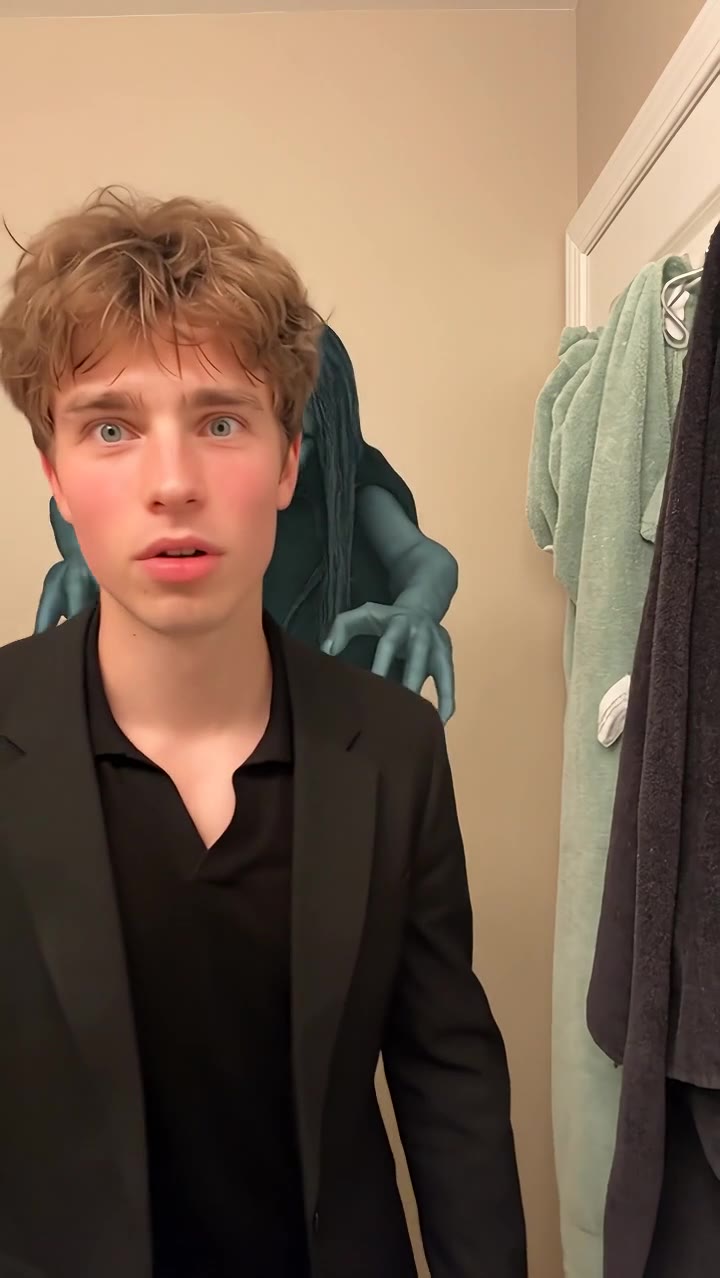
There’s a ghost behind you—until you turn around. Upload a person photo for a playful disappearing-ghost prank.
Use a clear, well-lit photo of one person facing the camera. A visible face and upper body work best.
AI video model: Seedance 2.5Video generation is powered by Seedance through BeatAPI. This model is used when you submit a generation.
Credits are automatically returned if generation fails due to a technical problem.
Loading…
Use photos and likenesses you have permission to use.
Video Preview
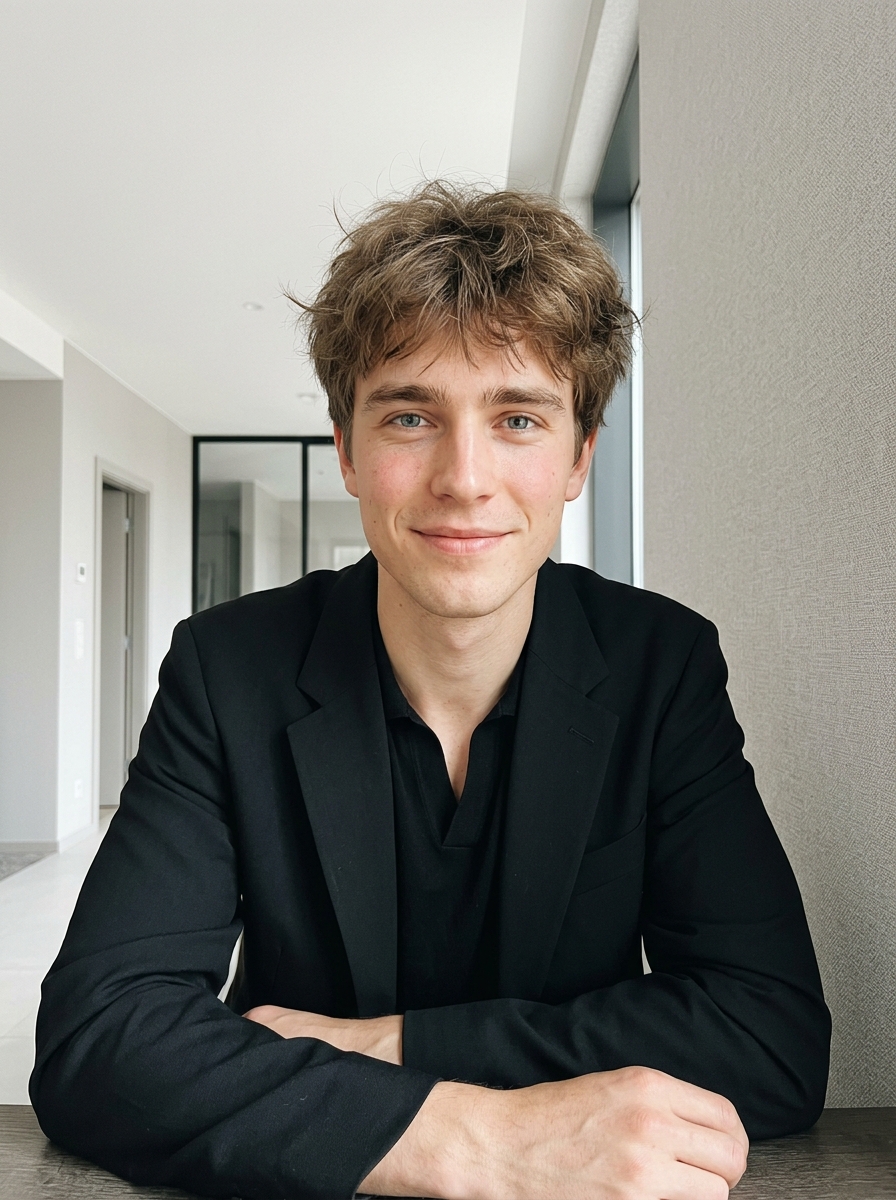
Your photo is where the story starts
Effect preview. Your generated video will appear here when it is ready.
Try More Viral Videos
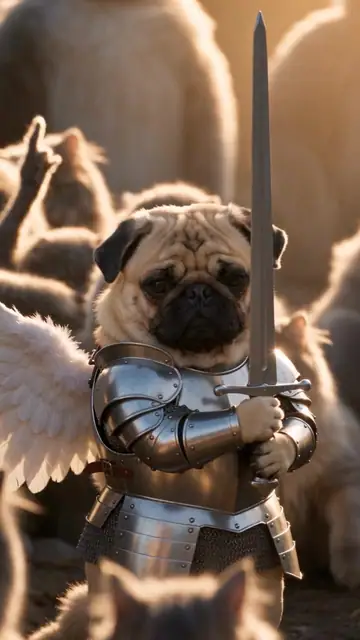
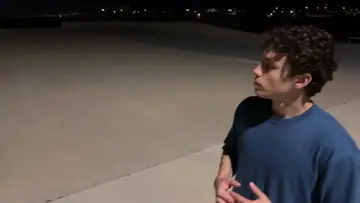
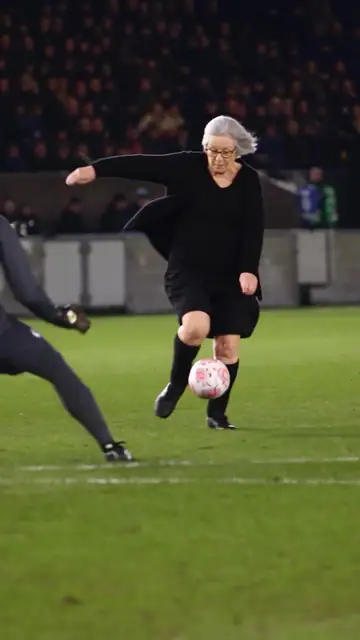
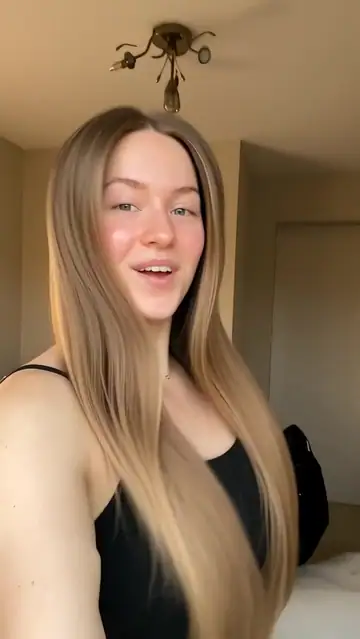
What is Ghost Filter Prank?
The lead looks back for a ghost, returns to the camera and reacts when it reappears. The joke comes from the reveal and reaction; this is a generated clip rather than a live camera filter.
- What your photos control
- One person photo guides the foreground human. The grey-green, long-haired ghost is a preset effect character and needs no second photo.
- Movement and background
- AI generates a new clip from the example’s routine and setting. Backgrounds, camera movement, expressions and occlusion may vary; frame-for-frame matching is not guaranteed.
Photo to video: a paired example
Compare the input photos with their corresponding video to assess the subject’s appearance and movement.
What happens in this video?
Three frames from this template’s showcase explain the scene and performance.
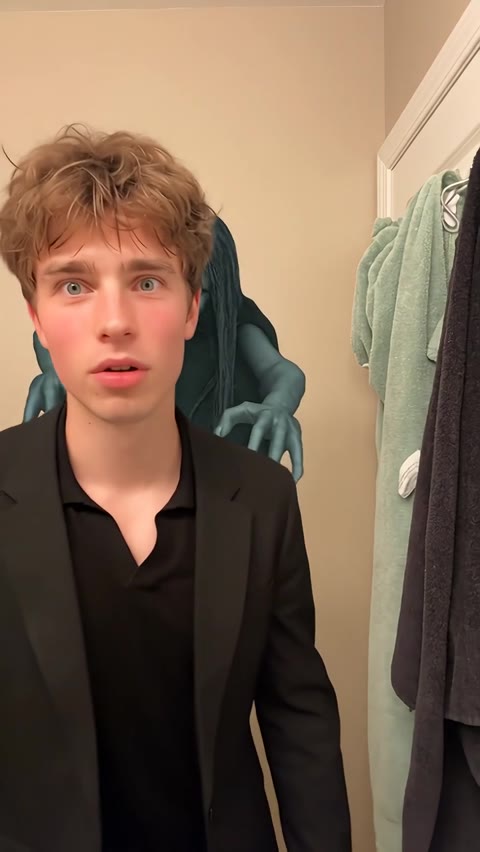
01 · Opening Notice something behind you
The lead faces the camera with the ghost behind the shoulders or body.
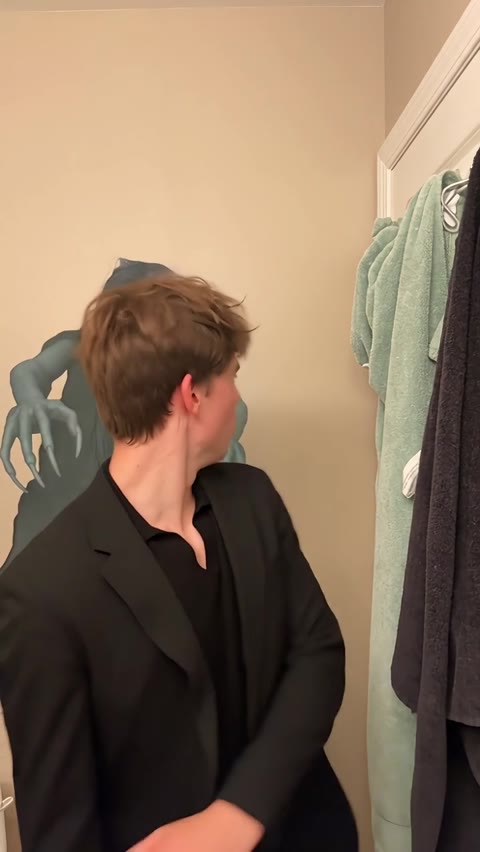
02 · Middle Turn to inspect the background
The person checks behind them as the ghost's visibility changes through the reaction.
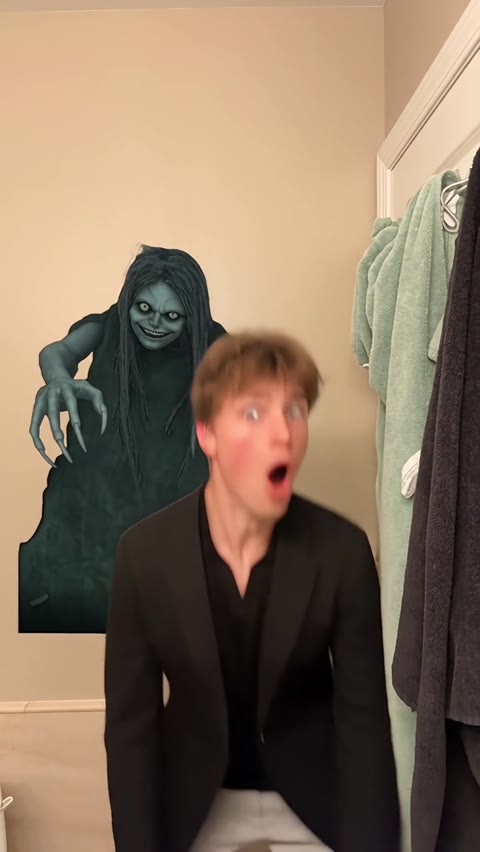
03 · Later React as the ghost reappears
The lead opens their mouth, retreats, or crouches while the ghost creates the final contrast.
How to get a better result
Recommended photos
- One frontal or slightly turned face
- Clear head and shoulders, with space beside them
- Even lighting and clear detail
- A subject outline distinct from the background
Try to avoid
- Collages, chat interfaces or watermarked screenshots
- Dark selfies or covered eyes
- Group photos or multiple reflected faces
- Blur, darkness or heavy filters
If the result needs improvement
- The appearance looks different
- Compare the face, hair or fur across shots. Higher resolution does not lock identity. Use the photo guidance above to choose a different input; each new generation still uses credits.
- Limbs or props connect awkwardly
- Pause to check where hands, paws and props meet. Occlusion and fast movement can cause structural errors. There is no local repair editor, and higher resolution does not guarantee correct anatomy.
- Roles or positions get mixed up
- Only one lead is assigned your photo. Companions, ghosts and background animals need no additional input. A transferred identity appearing on a companion is a generation error.
- The movement or performance differs
- Turns and the ghost's disappearance or return may be mistimed, and the two figures can overlap. Frame-by-frame visibility control is not guaranteed.
- The task reports a generation failure
- Check the task status in My Videos first. Technical failures return deducted credits automatically; a successful video that does not meet personal expectations is a different situation. Each new generation costs credits, so review the refund policy before retrying.
How to Make a Ghost Filter Prank Video
- Step 01
Upload your photos
Choose a clear photo of one person.
- Step 02
Generate your video
Choose 480p / 720p / 1080p, confirm the credits, and submit. The current output is 12 seconds in 9:16. You can leave the page while it processes, then check My Videos when ready.
- Step 03
Download and share
When ready, play and download the MP4 from My Videos and save a copy to your device.
My Videos
FAQ
Is Ghost Filter Prank a live camera filter?
No. This site generates a preset prank clip from a person photo. It does not use your camera for live detection or tracking.
Can the ghost be my friend from a second photo?
There is no second character input. Your photo guides the foreground person; the ghost remains a template effect rather than a role for your friend’s photo.
What kind of photo works best?
One clear photo of one personSee photo guidance for this effect ↓
Will the ghost timing and my reaction match the preview exactly?
Exact timing is not guaranteed. The target is a look-back, reveal and surprised response, but timing, expression and occlusion can vary. It is not footage of a real apparition.
Will the result keep the appearance in my photos?
The photo guides the subject’s identity and appearance rather than copying the original footage’s pixels. Faces, hair, fur and clothing can change with movement; special styling such as armor follows this page’s description.
What duration and aspect ratio will I get?
The current template outputs a 12-second MP4 in 9:16, with 480p / 720p / 1080p quality options. Confirm the current credit quote on the generation button before submitting.
Does this video include music or sound?
Yes. The finished video uses this template’s original soundtrack, including any music, vocals or scene sounds present in that track. The new subject does not record a separate singing voice.
What if the result looks wrong or generation fails?
Check the status in My Videos first. A technical failure returns deducted credits automatically; a completed result you dislike is a different case.See troubleshooting ↓View refund policy ↗