
Photo to Video AI Generator
Viral templates
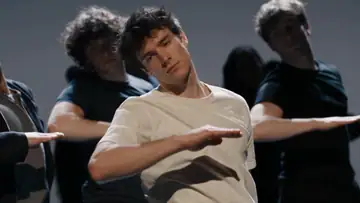
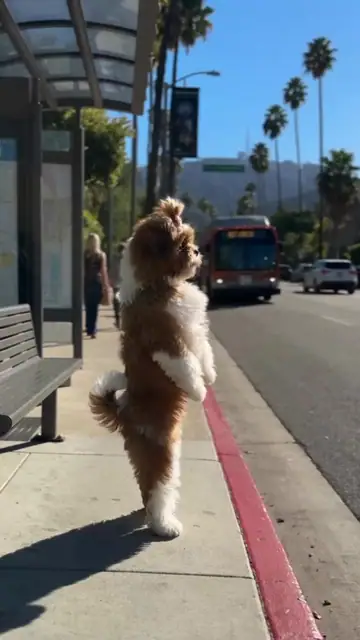
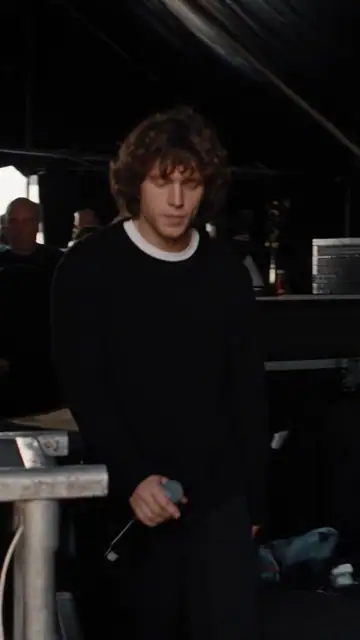
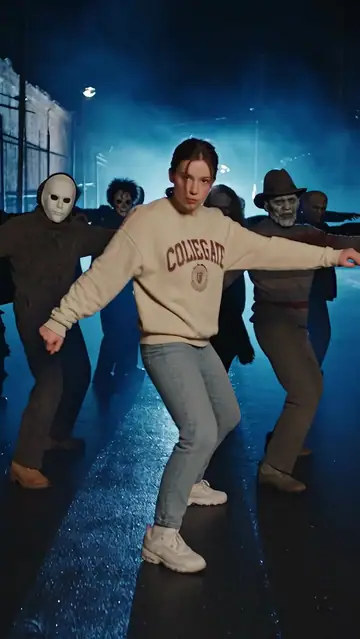
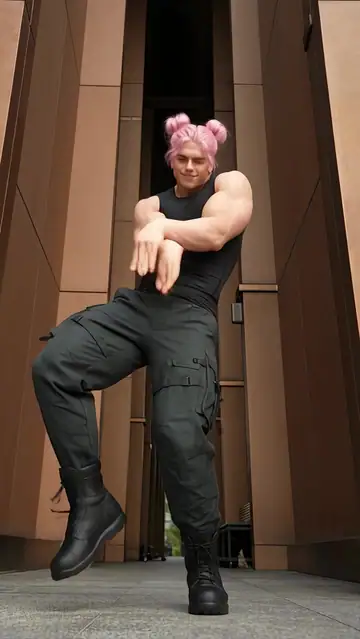
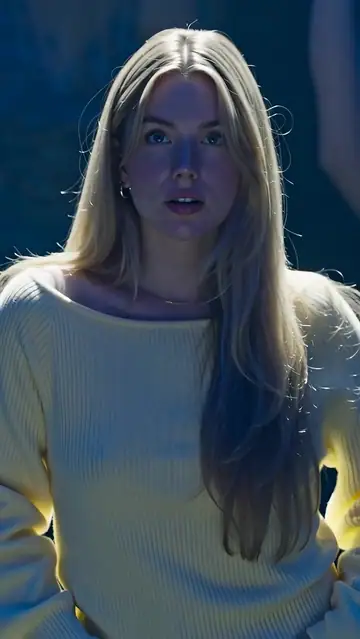
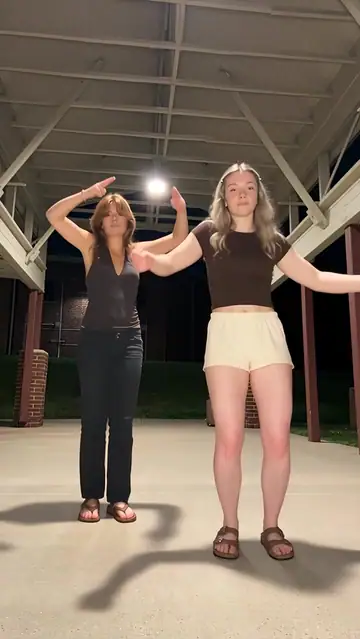

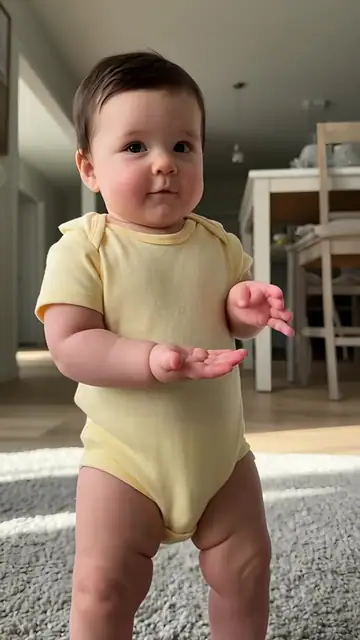
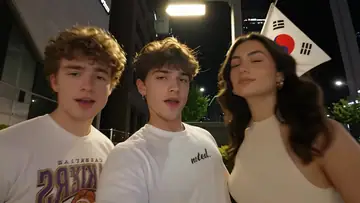
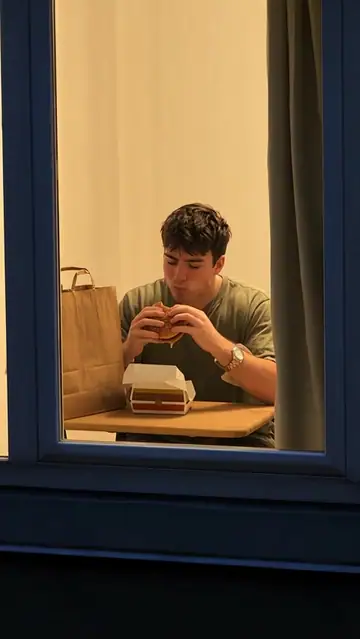
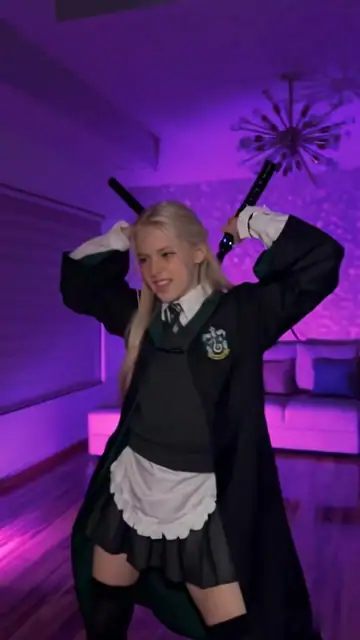


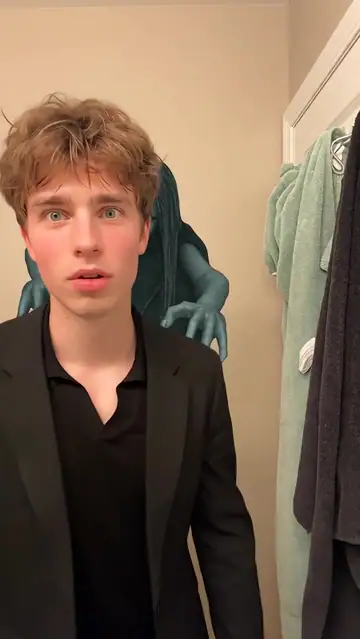
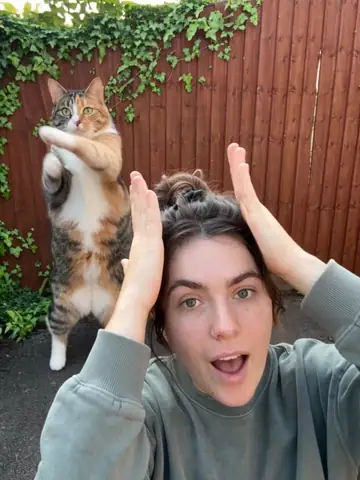
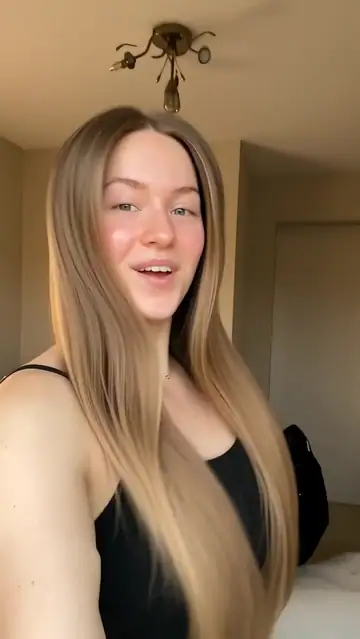

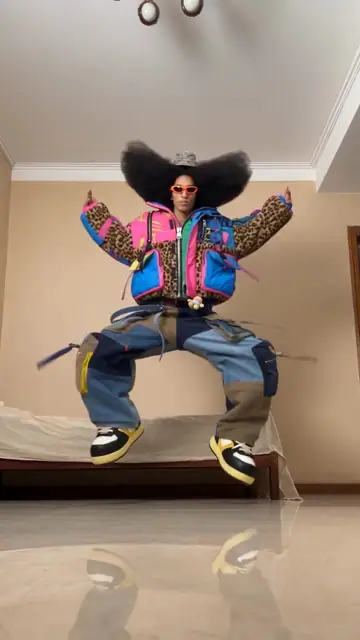
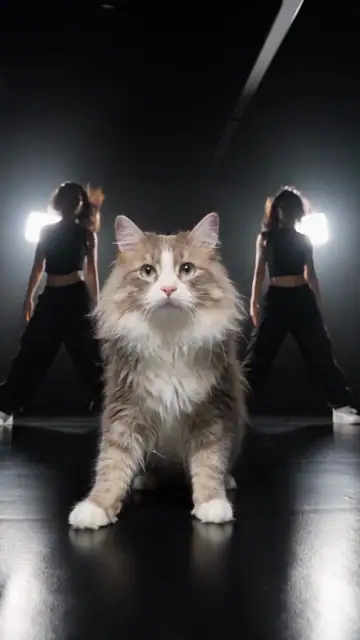
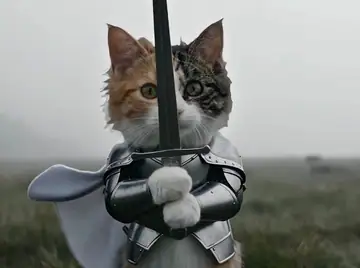
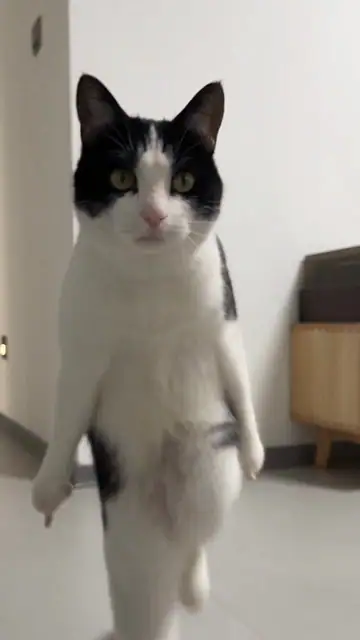
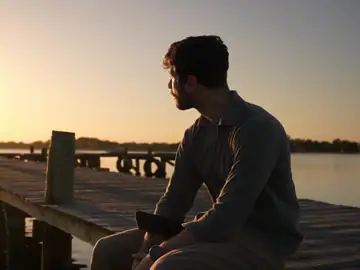
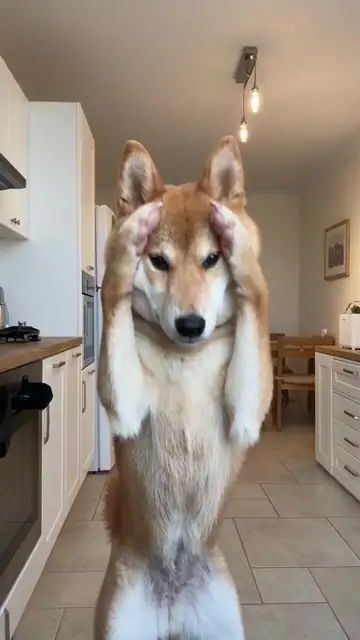
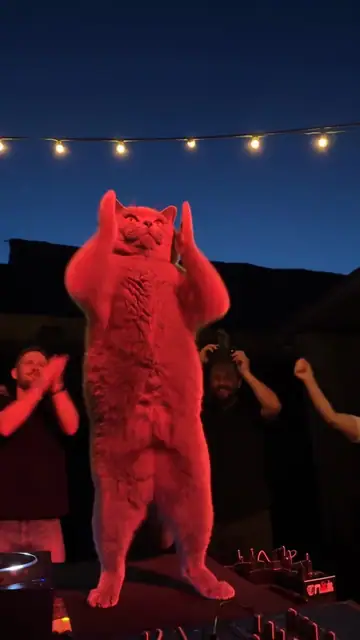
Loading…
Animate a Photo with AI
Turn portraits, product photos, and pet pictures into AI videos with TrendClipGen. Add motion, camera movement, or creative scenes using your photos.
Animate a Portrait
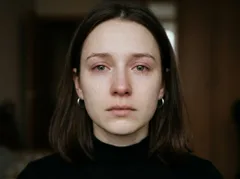
Photo-to-video example of a woman’s facial expression changing into a tearful close-up.
Bring emotion to a still portrait. Describe a changing expression, a glance, or a gentle head movement.
Try this
Bring a Product to Life
Photo-to-video product showcase revealing a red checked tumbler on a sunny beach picnic table.
Turn a product photo into a short showcase. Add a reveal, camera movement, or an inviting scene around it.
Try this
Create a Fantasy Pet Video
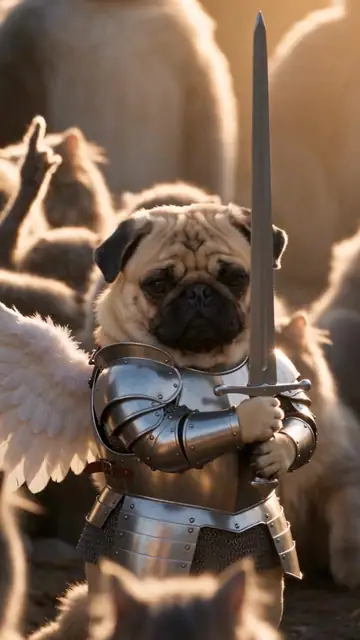
AI pet video featuring an armored cat with a sword and a human character in a misty outdoor fantasy scene.
Give your pet a starring role in a playful story. Describe the character, setting, and action you want to see.
Try thisHow to Turn a Photo into a Video
To turn a photo into a video, upload your image, describe the motion you want, and generate your video. You can also start with a ready-made viral template.
- STEP 1
Upload your photo
Start with a clear photo of a person, pet, or object. For a template, add the photos its roles require.
- STEP 2
Choose your motion
Describe what should happen, or start with a viral template.
- STEP 3
Generate your video
Choose your settings, check the credit cost, and generate. Watch and download the result in My videos.
How Much Does Photo to Video Cost?
Pay only when you create. No subscription required.
Example generation · Seedance 2.5
40 credits
Seedance 2.5 · 5s · 720p video
The credit cost depends on your engine, duration, resolution, and input mode. Check the cost shown before generating.
Starter credit option
Checking available offers…
100 credits
Enough for 2 videos at 40 credits each, with 20 credits left over.
- One-time purchase
- Purchased credits never expire
- No auto-renewal
- Credits returned for technical failures
Frequently Asked Questions
How do I animate a photo with AI?
Upload a clear photo of a person, pet, or another supported subject to TrendClipGen. Describe the movement you want, such as a gentle smile, a head turn, or a slow camera move, or choose a viral template for a preset action. Select your video settings, check the credit cost, and click Generate Video. You can preview and download the finished video without traditional video editing.
How many photos can I upload, and which photos work best?
You can start with just one photo. PHOTO mode supports up to 9 reference images, but you don't need to use them all. Clear, well-lit images with visible faces or subjects work best. Avoid blurry photos, heavily covered faces, and cluttered backgrounds.
What's the difference between PHOTO and FRAMES mode?
PHOTO mode uses your uploaded images as visual references for generating a video. They help guide the subject's appearance and scene but don't necessarily become exact video frames.
FRAMES mode lets you provide a starting and ending image to guide how the video transitions between them.
Can I control how my photo moves in the video?
You can choose a viral template for a preset action or use the creation options available in your selected mode. AI can produce movements, expressions, and camera changes, but the exact results may vary. For more predictable results, start with simple movements rather than complex actions.
Will the person or pet still look like the original photo?
TrendClipGen uses your uploaded photos to guide the subject's appearance. However, AI-generated motion can sometimes change facial details, hairstyles, clothing, or fur. Using clear reference photos can help, but an exact match throughout the video isn't guaranteed.
Can I generate videos with sound?
Yes, audio generation is available when supported by the selected video settings. Depending on the content and engine, your video may include music, ambient sound, or sound effects. Accurate speech, lip-sync, and reproduction of a person's real voice aren't guaranteed.
Is TrendClipGen Photo to Video free to use?
Browsing and previewing viral video templates is free. New accounts receive 10 complimentary credits once. Generating a video uses credits, and the cost is shown before you submit. Check your balance and the required credits; you may need a top-up to generate. Purchased credit packs are one-time payments with no subscription or expiration.
How long does it take to generate a video, and where can I download it?
Generation typically has an estimated processing time of 5–15 minutes, although the actual time depends on the video settings and current demand. You can check progress in My Videos. Once complete, you can preview and download your video as an MP4 file.
What happens if my video generation fails or I don't like the result?
If generation fails because of a technical issue, the credits deducted for that task are automatically returned. If a video generates successfully but doesn't match your expectations, generating another version starts a new paid task. See our Refund Policy for details.
Are my uploaded photos and generated videos private?
Your uploaded photos and generated videos aren't publicly displayed to other users by default. Images and task information are processed by the AI services needed to create your video. Download videos you want to keep, as storage isn't permanent. You can also request deletion of your data. Learn more in our Privacy Policy.