
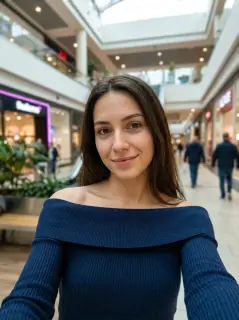
Your photo is where the story starts
This is an effect preview. You can check progress and watch your finished video in My Videos.
Use this templateLoading…
Like JENNIE Dance AI Video
Restoring draft…
- Estimated time
- 5–15 minutes
- Credit cost
- Loading…
Credits are automatically returned if generation fails due to a technical problem.
Your finished MP4 will be saved in My Videos, where you can play and download it.
Loading…
Use photos and likenesses you have permission to use.
Try More Viral Videos
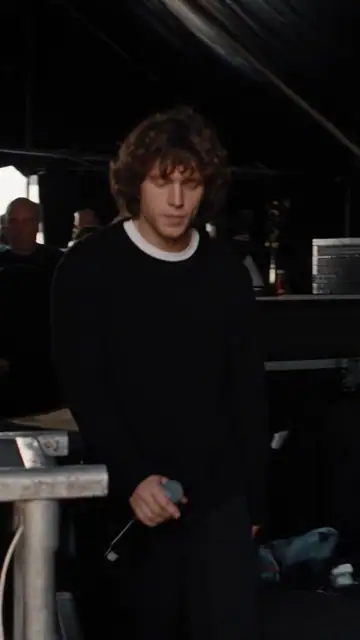
What is Like JENNIE Dance AI?
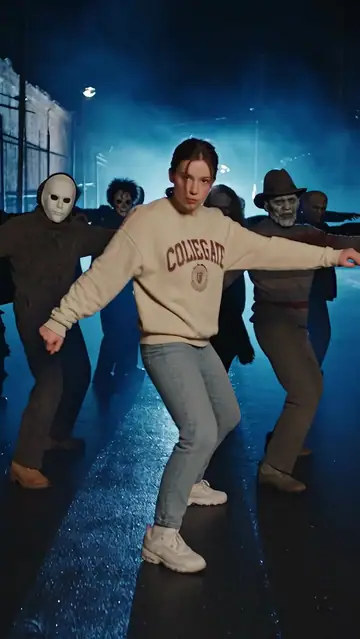
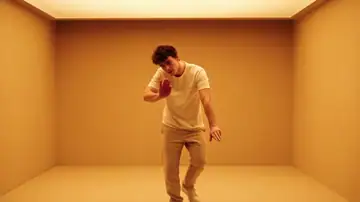
Take the central role in a 14-second Like JENNIE stage routine. The lead moves from a face close-up into hand gestures, swaying steps and raised arms, then drops to the reflective floor for an overhead finish.
- What your photos control
- One uploaded person photo controls only the central lead throughout the close-ups, wide shots, overhead views and floorwork. The black-clad backup dancers remain separate template characters and do not need uploaded photos.
- Movement and background
- AI generates a new clip from the example’s routine and setting. Backgrounds, camera movement, expressions and occlusion may vary; frame-for-frame matching is not guaranteed.
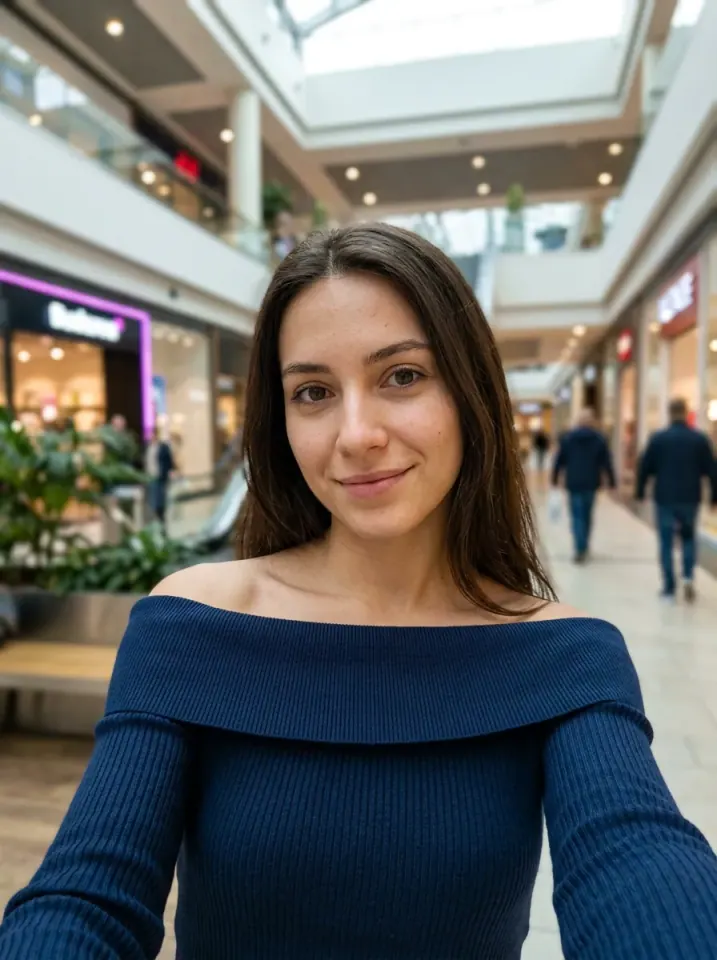
Photo to video: a paired example
Compare the input photos with their corresponding video to assess the subject’s appearance and movement.
What happens in this video?
Three frames from this template’s showcase explain the scene and performance.
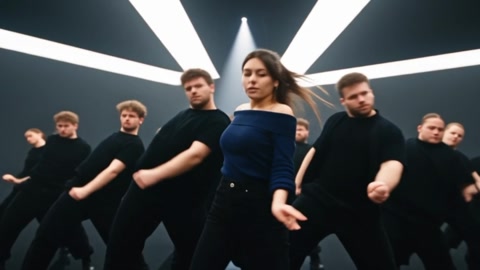
01 · Opening Lead the stage routine
A face close-up opens into eye-level hand gestures, side steps and sharp arm movements with the ensemble.
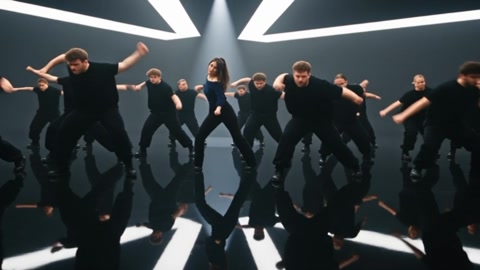
02 · Middle Reach under the lights
The lead raises both arms under angular white lights as the camera moves from wide shots to a closer low angle.
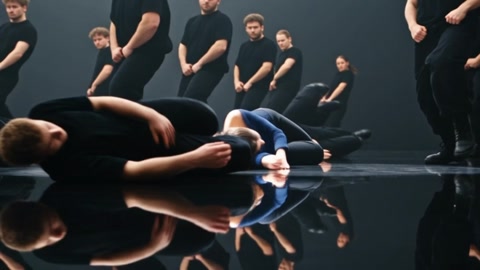
03 · Later Finish on the floor
The camera switches overhead, drops to floor level as the lead crouches and side-folds, then closes from above.
How to get a better result
Recommended photos
- Use one sharp, evenly lit photo with the face and full hairstyle unobstructed.
- A full-body or upper-body view with visible clothing helps guide the lead’s arm movements, outfit and floorwork.
- Even lighting and clear detail
- A subject outline distinct from the background
Try to avoid
- Collages, chat interfaces or watermarked screenshots
- Group photos, strong beauty filters or a face hidden by a phone, hair, sunglasses or deep shadows.
- A tight face-only crop that leaves the shoulders, outfit and body shape unclear.
- Blur, darkness or heavy filters
If the result needs improvement
- The appearance looks different
- Try a sharp, unobstructed portrait with even lighting and visible hair. Avoid heavy filters and group photos; the lead turns quickly and is sometimes partly hidden by arms or nearby dancers.
- Limbs or props connect awkwardly
- Show shoulders, arms, clothing and legs where possible. Hand shapes, overlapping limbs and the transition from crouching to side-folding are difficult details and may vary.
- Roles or positions get mixed up
- There is one lead upload slot. It follows the central performer in close-ups, wide shots, overhead shots and floorwork; the surrounding black-clad dancers should not inherit the uploaded face.
- The movement or performance differs
- The depth reference guides the original choreography and camera changes. Fast hands, overlapping dancers and floor contact can vary; exact motion and likeness are not guaranteed.
- The task reports a generation failure
- Check the task status in My Videos first. Technical failures return deducted credits automatically; a successful video that does not meet personal expectations is a different situation. Each new generation costs credits, so review the refund policy before retrying.
How to Make a Like JENNIE Dance AI Video
- Step 01
Upload your photos
Choose a clear photo of one person.
- Step 02
Generate your video
Choose 480p / 720p / 1080p, confirm the credits, and submit. The current output is 14 seconds in 16:9. You can leave the page while it processes, then check My Videos when ready.
- Step 03
Download and share
When ready, play and download the MP4 from My Videos and save a copy to your device.
My Videos
FAQ
Do I upload photos for the backup dancers?
Upload one photo of one person for the central lead only. The template supplies the black-clad backup dancers; your photo is not copied onto them.
Will the lead keep my face and clothes?
Your photo guides the lead’s face, age, hair, build and visible outfit. The prompt does not request the reference performer’s face, white blouse, jeans or ponytail. Generated details can still vary.
What kind of photo works best?
Choose one clear single-person photo with visible eyes, hairstyle, shoulders and outfit. A full-body view gives the model more guidance for raised arms, crouching and floorwork.See photo guidance for this effect ↓
Is this preview a generated customer result?
This preview is a generated example made from the supplied mall selfie. The uploaded person becomes the central lead in a navy top, while the backup dancers remain separate characters. Results can vary with the photo and settings.
Will the result keep the appearance in my photos?
One photo stays tied to the central lead through every camera change and the floor sequence. It guides the person’s original face, hair and outfit, while the backup dancers keep separate identities. Exact likeness is not guaranteed.
What duration and aspect ratio will I get?
The current output is an MP4 lasting 14 seconds in 16:9, with 480p / 720p / 1080p quality options. Check the current credit quote before generating.
Does this video include music or sound?
Yes. The finished video uses this template’s original soundtrack, including any music, vocals or scene sounds present in that track. The new subject does not record a separate singing voice.
What if the result looks wrong or generation fails?
Check the status in My Videos first. A technical failure returns deducted credits automatically; a completed result you dislike is a different case.See troubleshooting ↓View refund policy ↗