
Credits are returned if generation fails.
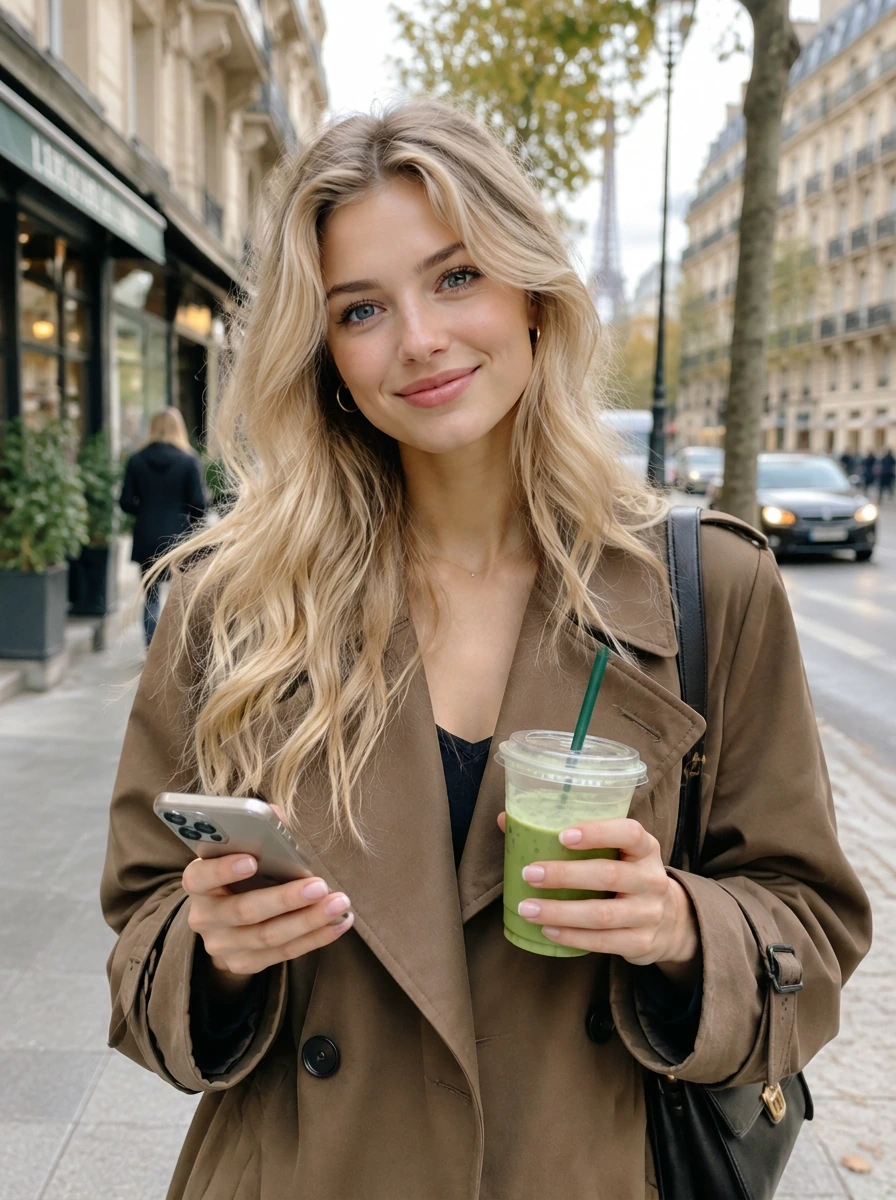
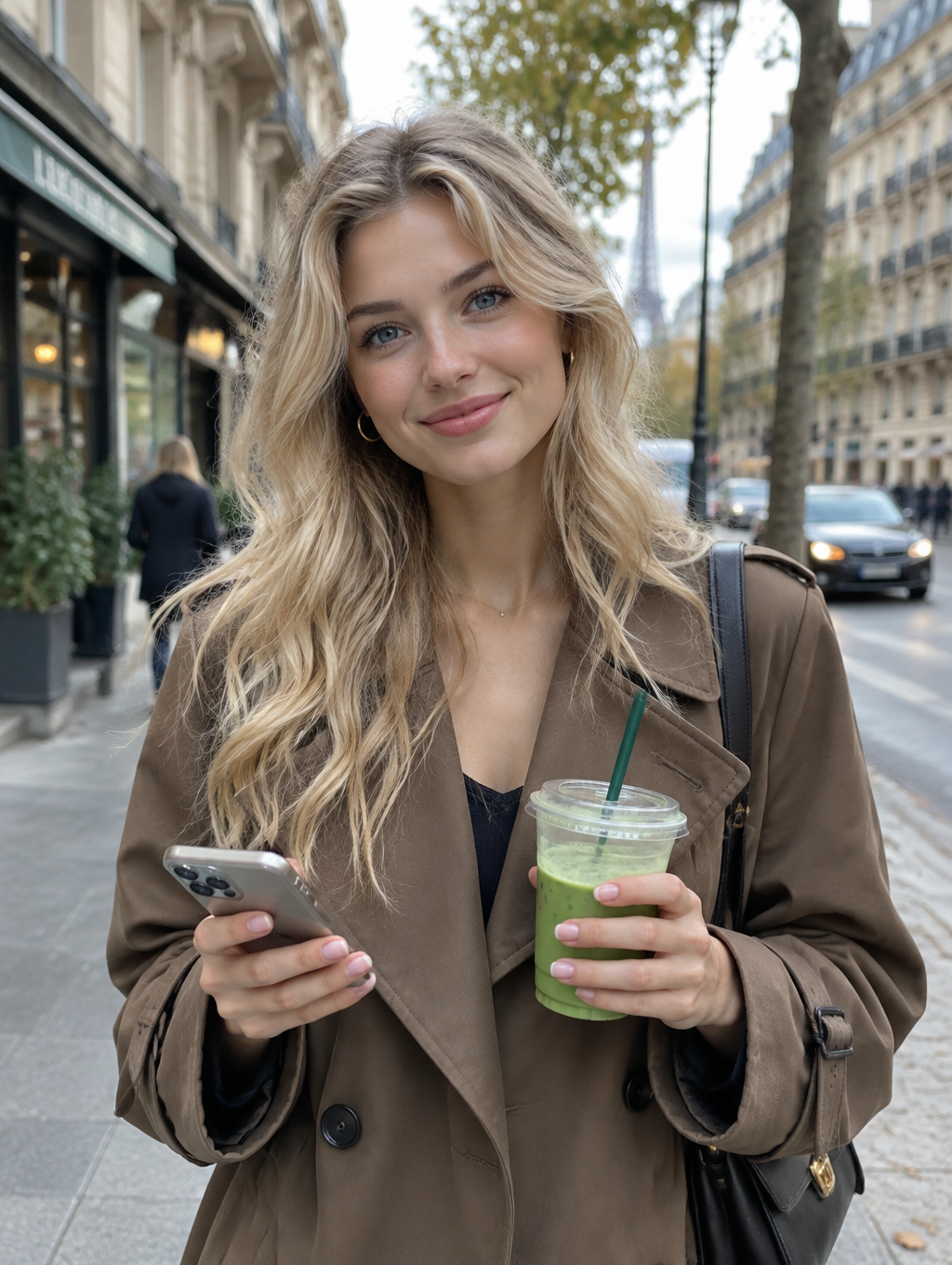
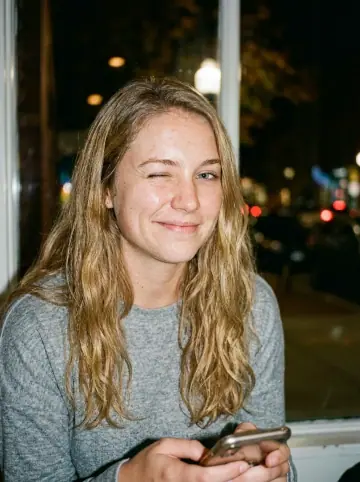
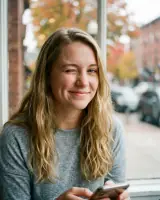
This example shows what the effect can do. Your uploaded photo is used when you generate, and results may vary.
Sign in to see your private images.
What Is the Lumicam AI Effect?
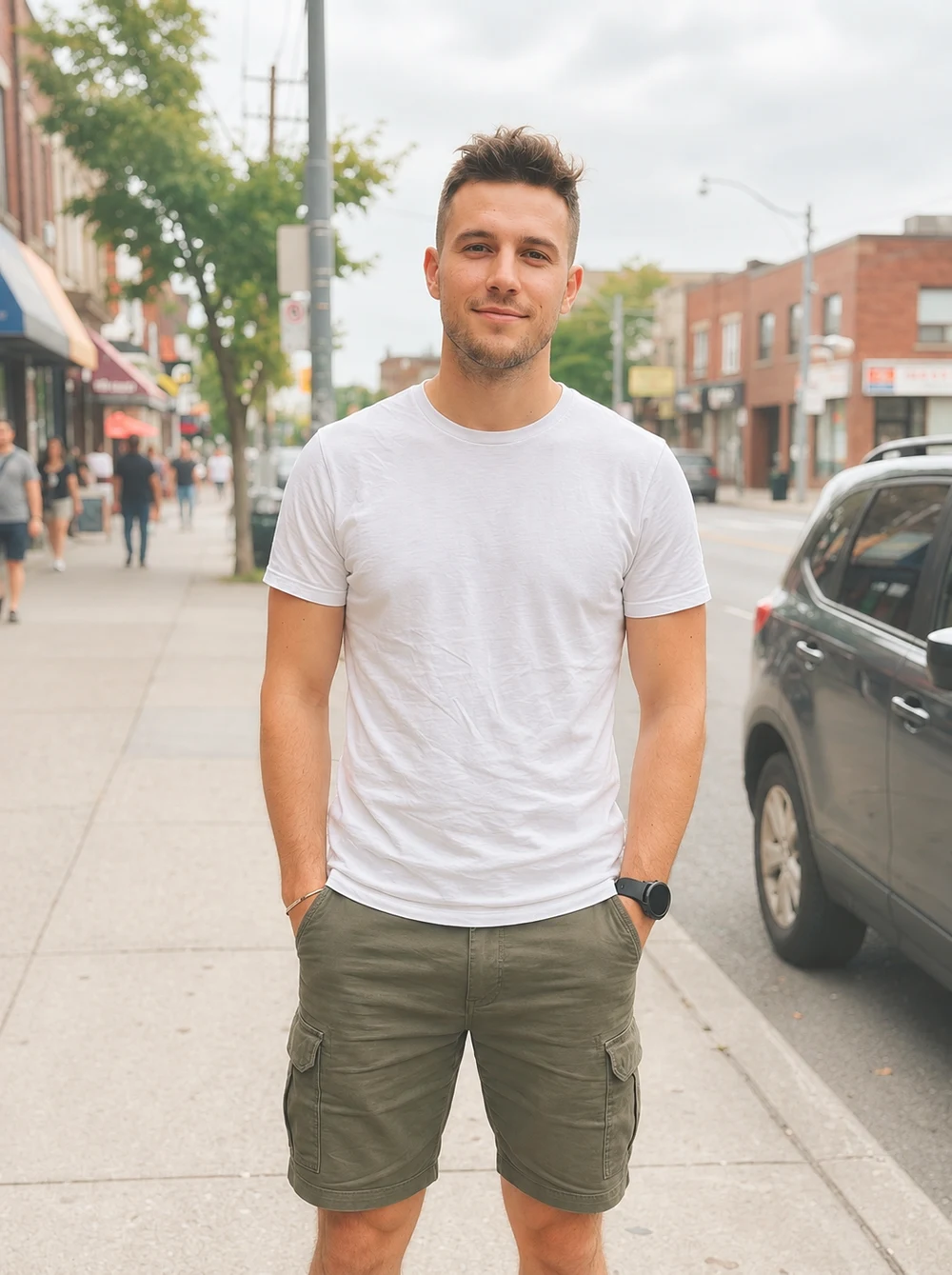
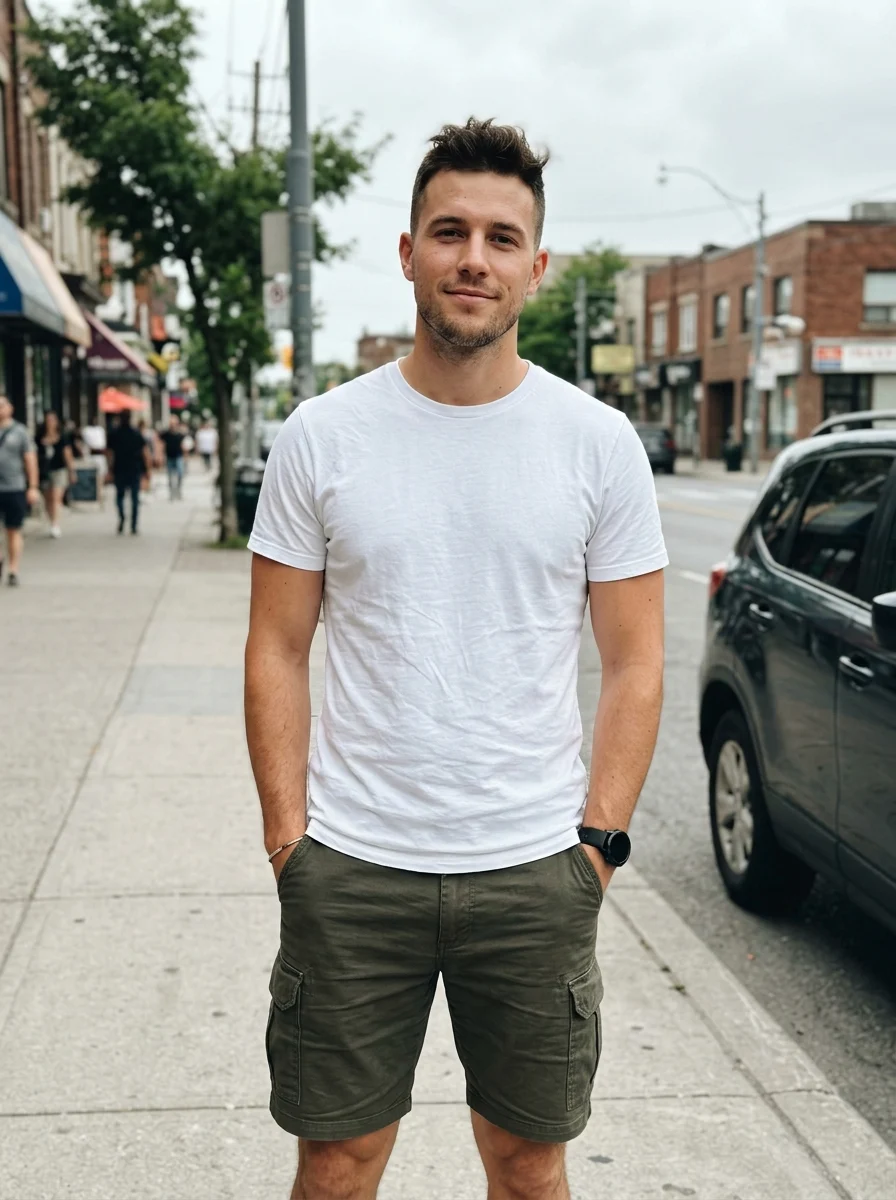
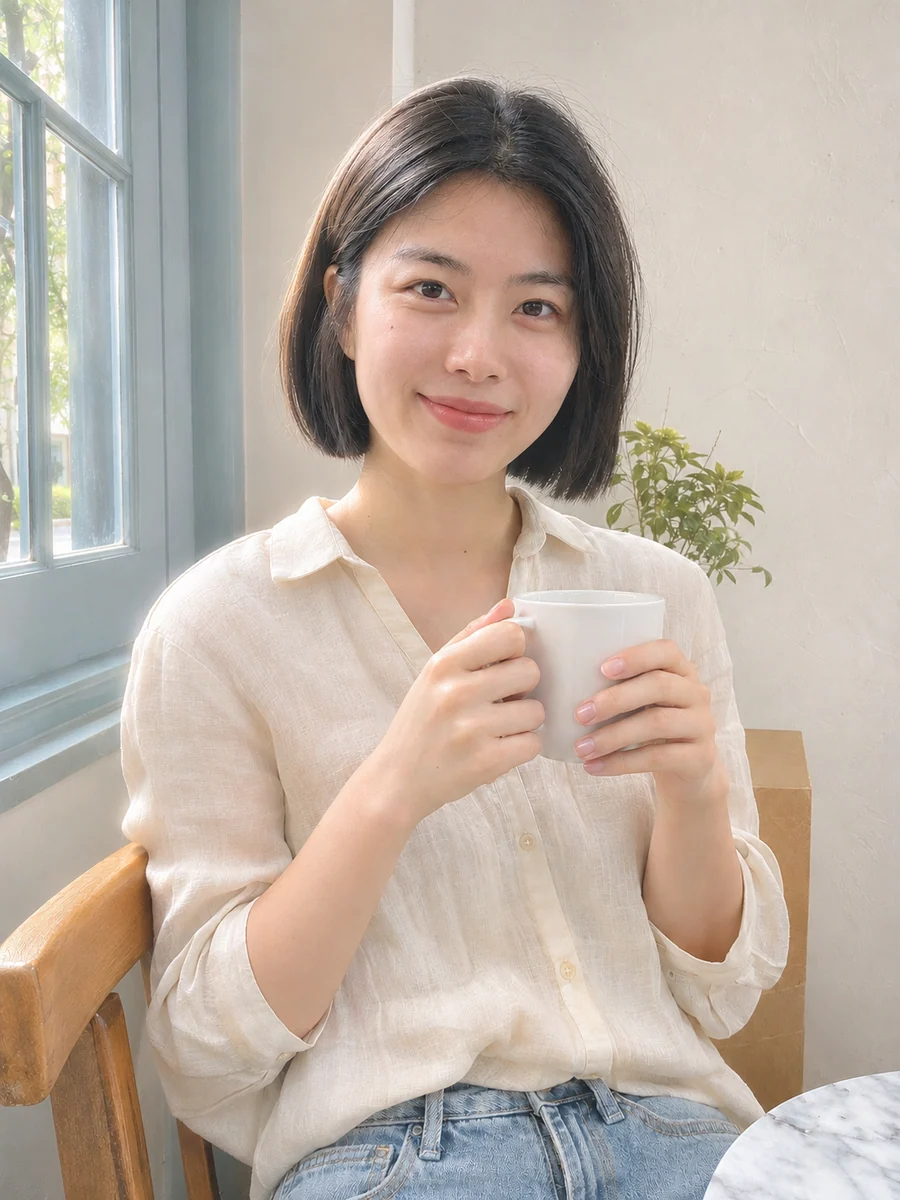
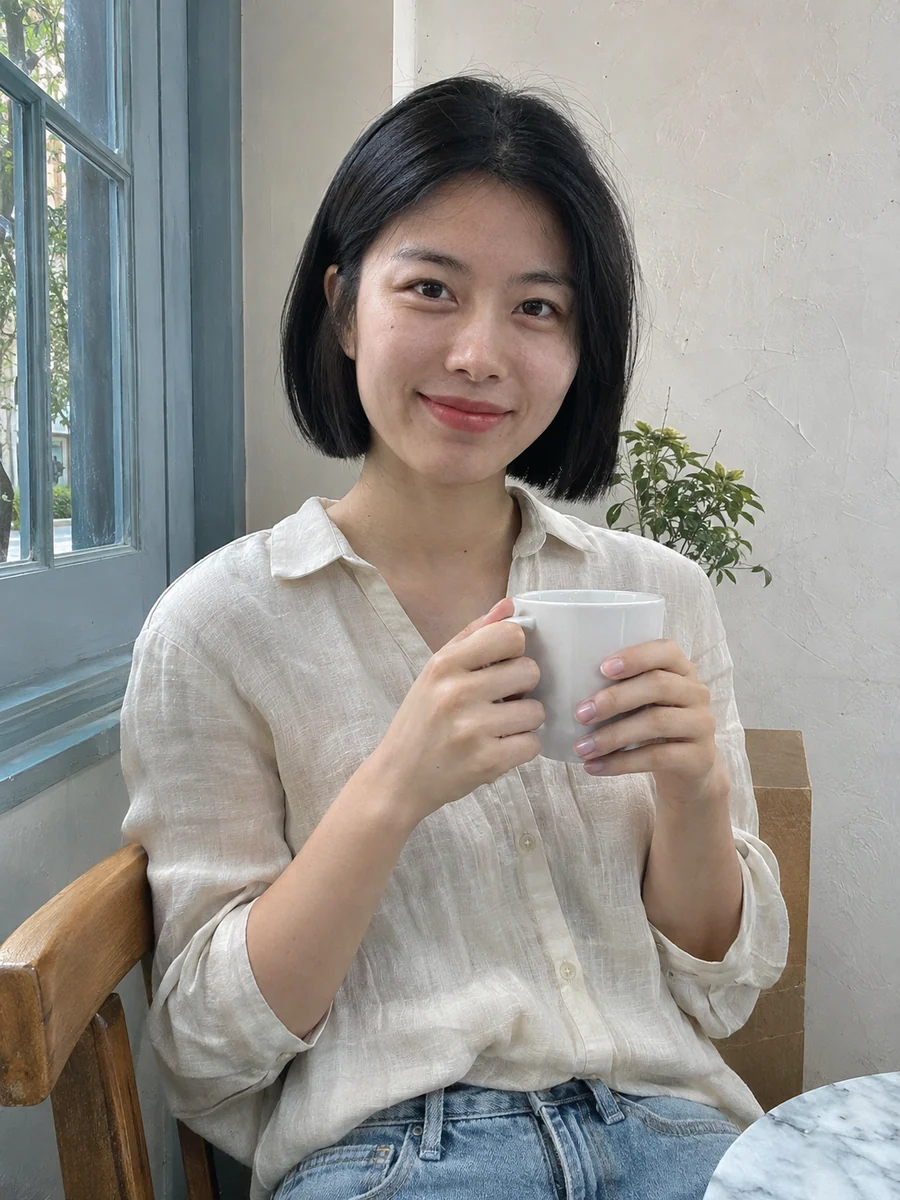
Lumicam AI follows the supplied references’ bright midtones, creamy highlights, warm natural skin and gentle digital haze. Blue daylight, green shade and local colors stay distinct. Lighting adapts to the source: diffuse daylight stays soft, existing backlight can glow, and dim scenes can use modest fill. The examples pair original photos with their AI-edited results.
How to Make a Lumicam AI Photo
- 01
Upload one photo
Choose a clear portrait or one group photo with readable faces, clothes and surroundings. Window-light and outdoor sources work well.
- 02
Choose your output
Keep Auto for the source ratio, or select another ratio to change the framing. Check the resolution, image count and displayed credits.
- 03
Generate and compare
Slide between the original and result, check the faces, creamy highlights and local colors, then download from My Images.
Tips for Better Results
Start with an in-focus source that still has detail in faces and white clothing. Avoid heavy beauty filters and already blown-out windows covering a face. Existing daylight or window light helps guide the gentle glow; the preset does not require a sunny scene. Keep Auto to retain the source ratio.
Frequently Asked Questions
What kind of source photo works best?
Use an in-focus portrait with readable skin, clothing and surroundings. Daylight and window-light photos give the soft glow useful direction; keep detail in white clothes and avoid heavy filters.
Will every image get strong flash or a sunset?
No. The prompt follows the original light and time of day. Diffuse daylight stays soft, existing bright areas can glow, and dim scenes may use modest fill without replacing the location.
Does Lumicam AI change my face, makeup or outfit?
The preset asks to preserve identity, complexion, expression, hair, clothes and accessories. It adds warm illumination rather than a new tan, blush or freckles. AI editing can still redraw small details, so compare the result with your source.
Can I upload a group photo?
Yes. Upload one image with clear, unobstructed faces. The prompt keeps the same distinct people and applies coherent lighting and color across them; it does not add extra people.
Will the soft finish make my photo blurry?
The preset requests mild digital softness, fine texture and restrained highlight glow while keeping faces and fabric detail readable. Keep Auto for the original ratio. A source that is already blurred or clipped cannot guarantee recovered detail.
Explore More AI Photo Effects
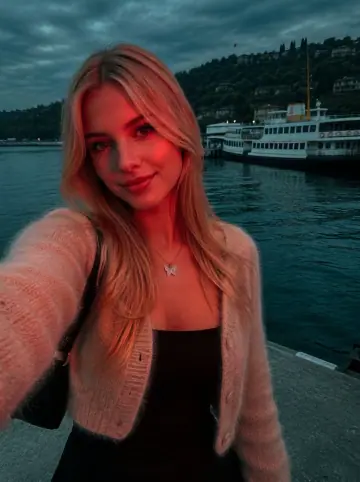
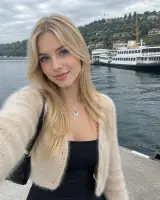
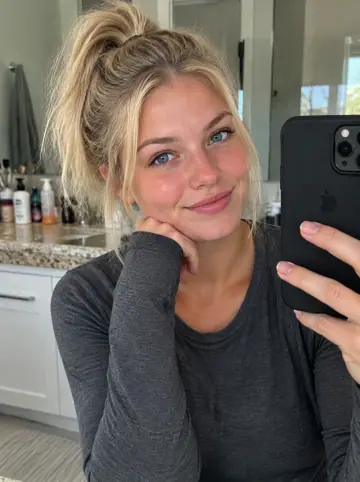
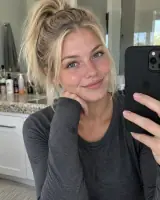
Make your own Lumicam AI
Add your photos to try this effect with your own images.
1 photo · 3 credits
Back to upload